
Tiger Cloud: Performance, Scale, Enterprise
Self-hosted products
MST
Azure Private Link creates a private connection between your Azure Virtual Network and Tiger Cloud services hosted on Azure, eliminating exposure to the public internet. Applications in your Azure VNet connect to a Private Endpoint with a private IP address, which links to Tiger Cloud. Once connected, your services become accessible only through the Private Endpoint, providing enhanced security, reduced attack surface, and compliance with data isolation requirements.

Note
This feature is currently not supported for Tiger Cloud on AWS.
To follow the steps on this page:
- Create a target Tiger Cloud service with real-time analytics enabled.
- Create an Azure account
 with an active subscription.
 - Configure permissions to create private endpoints and manage network resources.
- Create an Azure Virtual Network with a subnet for the resources you will connect to Tiger Cloud.
Note
Azure Private Link is currently in private preview. To request access in Tiger Console, go to Security > Private Endpoints and click Request access. Then refresh the page and follow the steps below.
Take the following steps to connect Tiger Cloud to Azure with Private Link:
Create a Private Link subscription authorization
In Tiger Console
, select Security>Private Endpoints>Configure Private Endpoint Connection.Enter your Azure subscription ID
and specify a name for the Private Link authorization, then click a checkmark next to it. 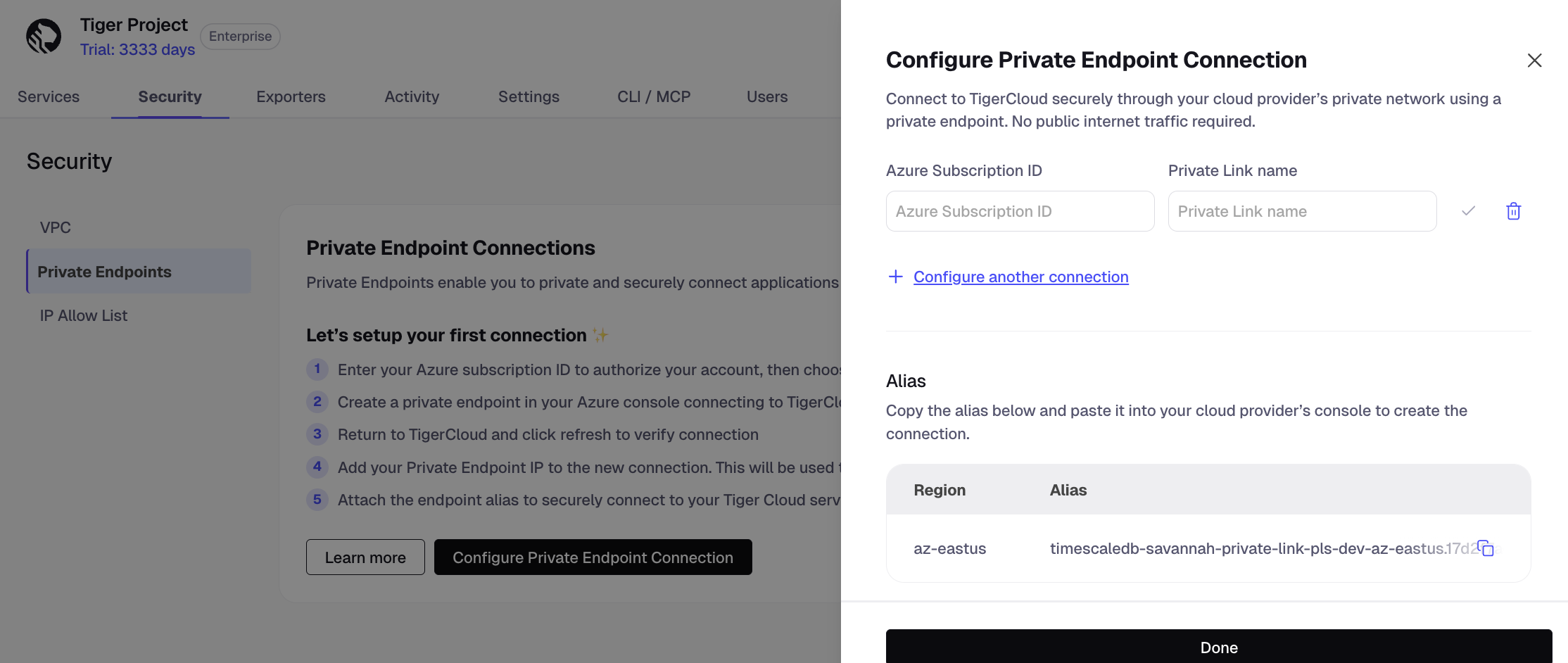
Under
Alias, copy the alias for the region in which you need to create the connection.Choose the region closest to your Azure resources for optimal performance.
Click
Done.Tiger Cloud confirms your authorization. Once it is confirmed, you can create multiple private endpoints from the same authorized subscription.
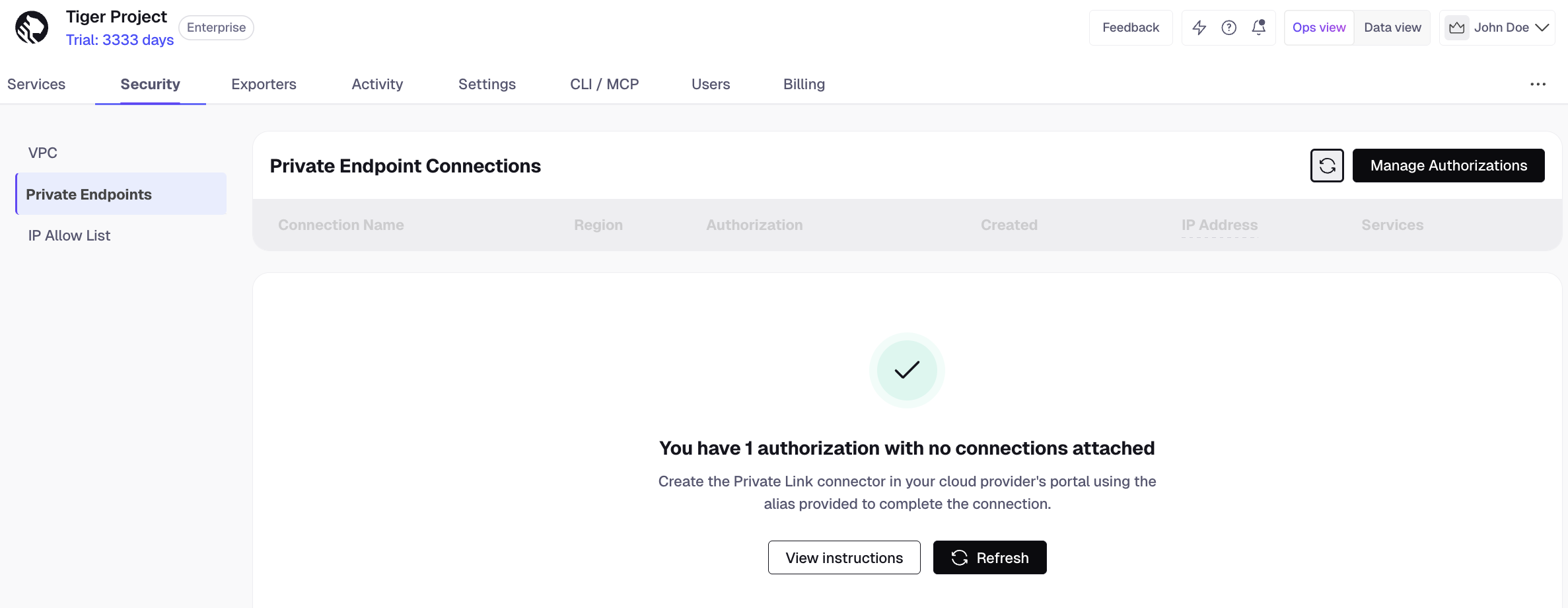
Create a private endpoint
In Azure Portal
, go to Private endpointsand clickCreate.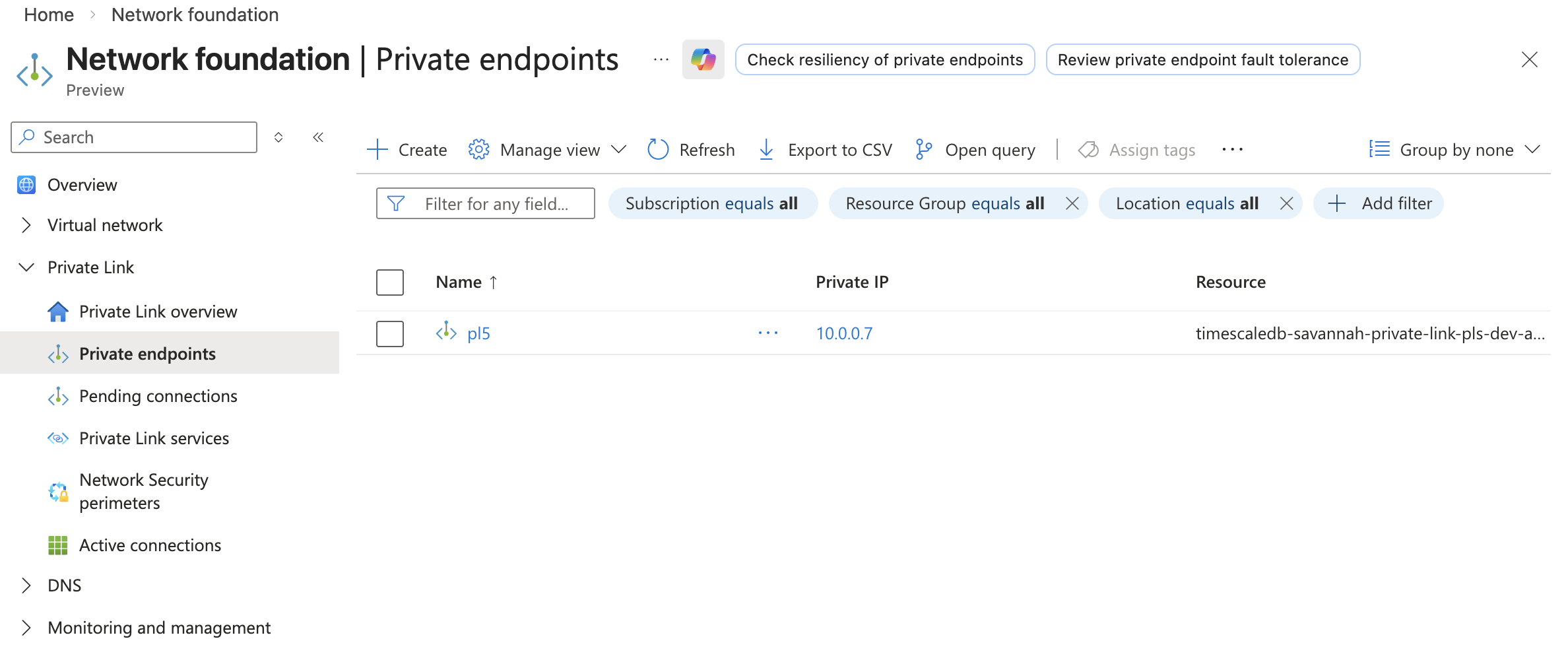
Configure the endpoint:
- In
Subscription, select the subscription you have previously authorized in Tiger Cloud. - In
Resource group, select an existing resource group or create a new one for your private endpoint. - Provide a name for your endpoint.
- Select the region where your Virtual Network is deployed, then click
Next: Resource. - In
Connection method, selectConnect to an Azure resource by resource ID or alias. - In
Resource ID or alias, paste the alias you have copied from Tiger Console. - In
Request message, enter your Tiger Cloud project ID, then clickNext: Virtual Network. - Select the Virtual Network and subnet for your endpoint, optionally select an application security group, then click
Next: DNS. - Optionally configure private DNS integration and tags for your endpoint, then click
Next: Review + create. - Review your config and click
Create. Azure creates your private endpoint. Wait for the deployment to succeed. - Go to
Private endpointsand copy the private endpoint IP from thePrivate IPcolumn.
- In
Sync the connection
In Tiger Console
> Security>Private Link, clickRefresh. Tiger Cloud automatically approves connections from authorized subscriptions. Your connection appears in the list.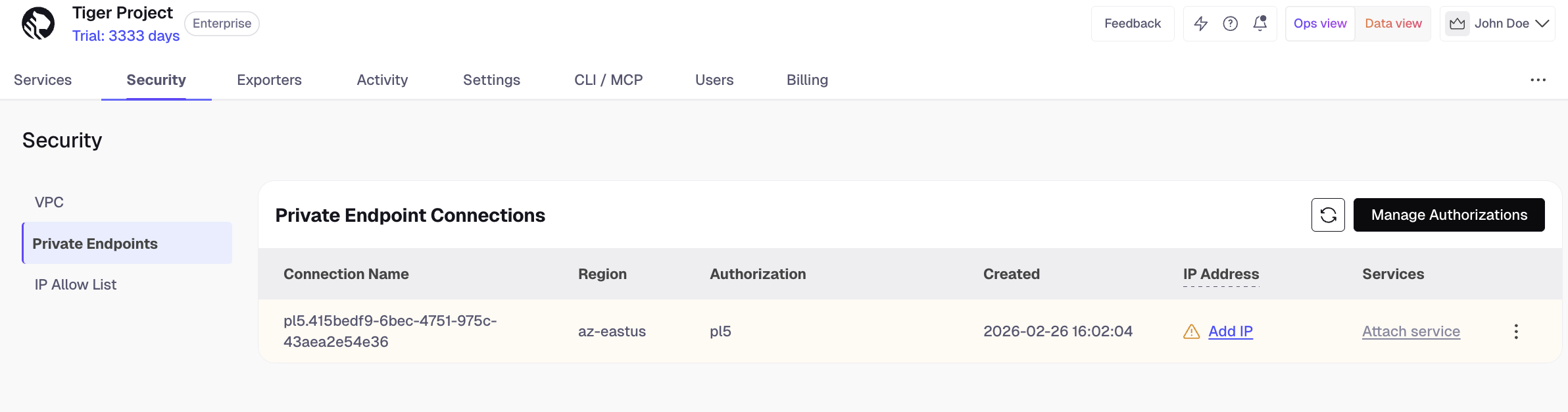
Click
Add IPand paste the IP address you have copied from Azure Portal.Click the three dots next to your connection and select
+ Attach service. Select your service from the dropdown and clickAttach. You can attach a service to one Private Endpoint connection.
Important
After attaching a service to a Private Endpoint, it is no longer accessible from the public internet. Make sure all your applications are configured to connect through the Private Endpoint before attaching your service.
From a VM inside your Azure VNet, connect to your service using a connection string with your connection details. You should be able to connect successfully.
- To detach a service from a Private Endpoint connection, go to
Security>Private Endpointsand expand the details of the corresponding connection. Click the trash bin icon and confirm detaching your service. - To edit or remove a connection, click the three dots next to the connection in the list and select
EditorDisconnect, respectively. Detach services from the connection before deleting it. - To remove an authorization, click
Manage Authorizations> trash bin icon. Disconnect all relevant connections before removing an authorization.
Keywords
Found an issue on this page?Report an issue or Edit this page in GitHub.